iVCam packs professional-grade video, audio, and camera control features into one free app. Discover why 5 million users chose iVCam over a traditional webcam.
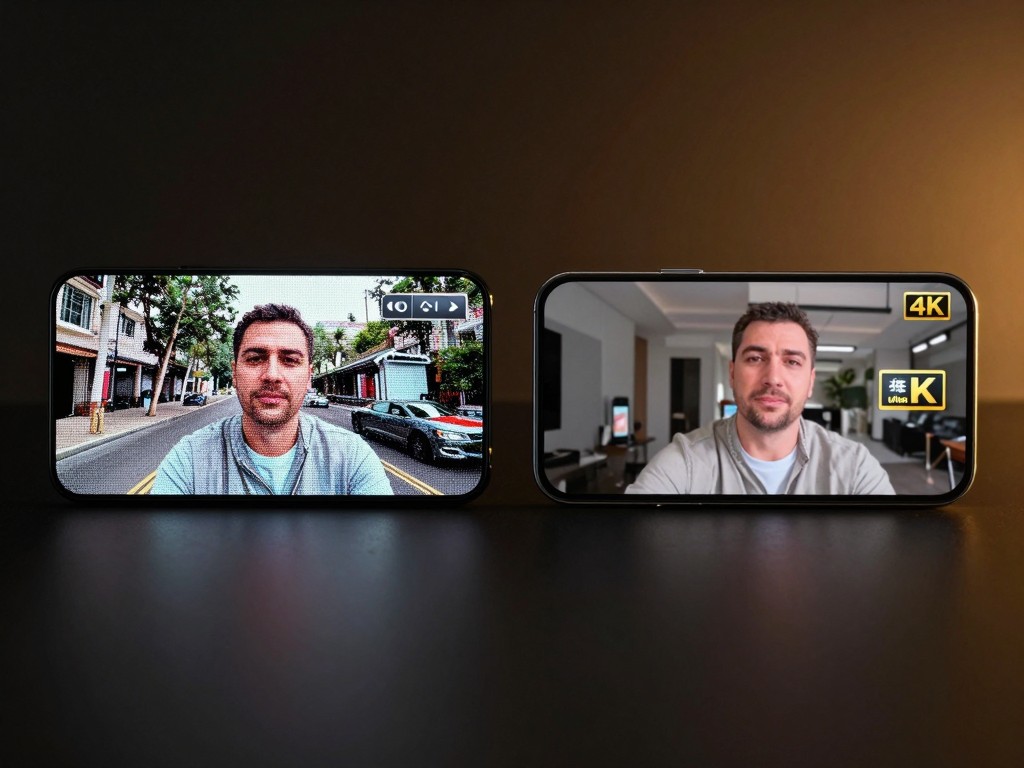
Stream and record at resolutions up to 4K (3840×2160) at 60 fps. Choose from 4K, 2K, 1080p, 720p, 480p, and 360p to match your bandwidth and use case.
Wi-Fi & USB Connection
Connect wirelessly over Wi-Fi for flexible placement, or plug in a USB cable for zero-latency stability. Both modes auto-discover — no manual IP setup needed.
Background Removal & Effects
Blur, bokeh, mosaic, green screen, or custom image/video backgrounds — all processed in real time on your GPU. No physical green screen required.
Wireless Microphone
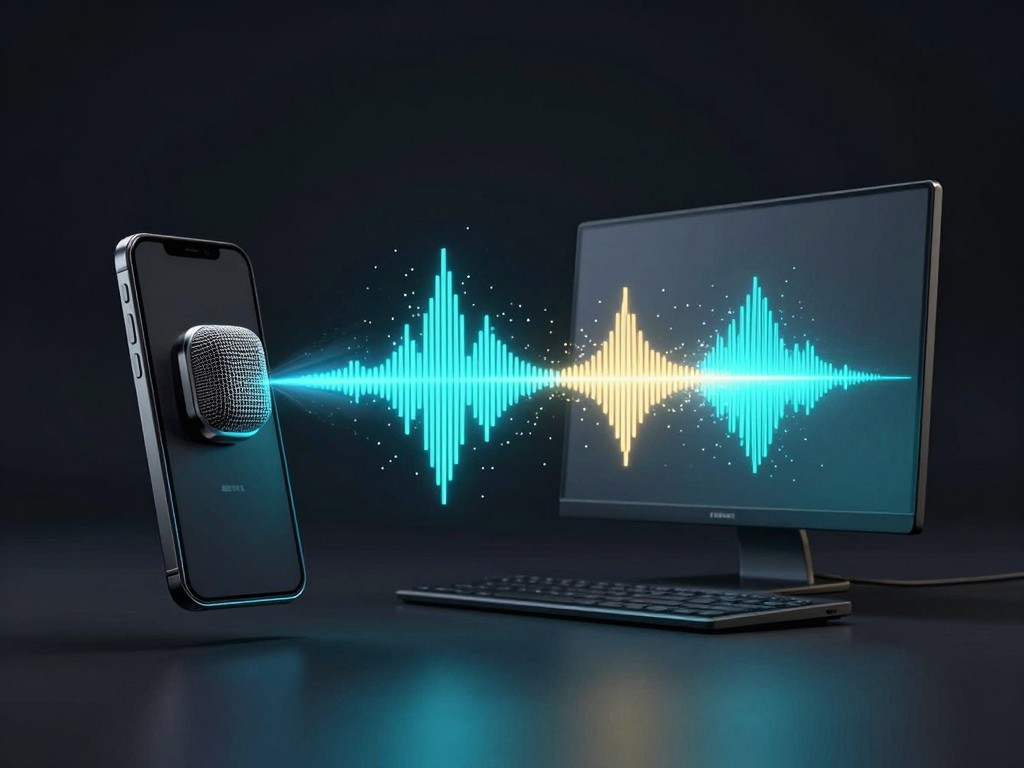
Turn your phone into a wireless PC microphone. iVCam transmits high-quality audio alongside video, with mono and stereo recording up to 48 kHz / 128 kbps.
Multi-Camera Support
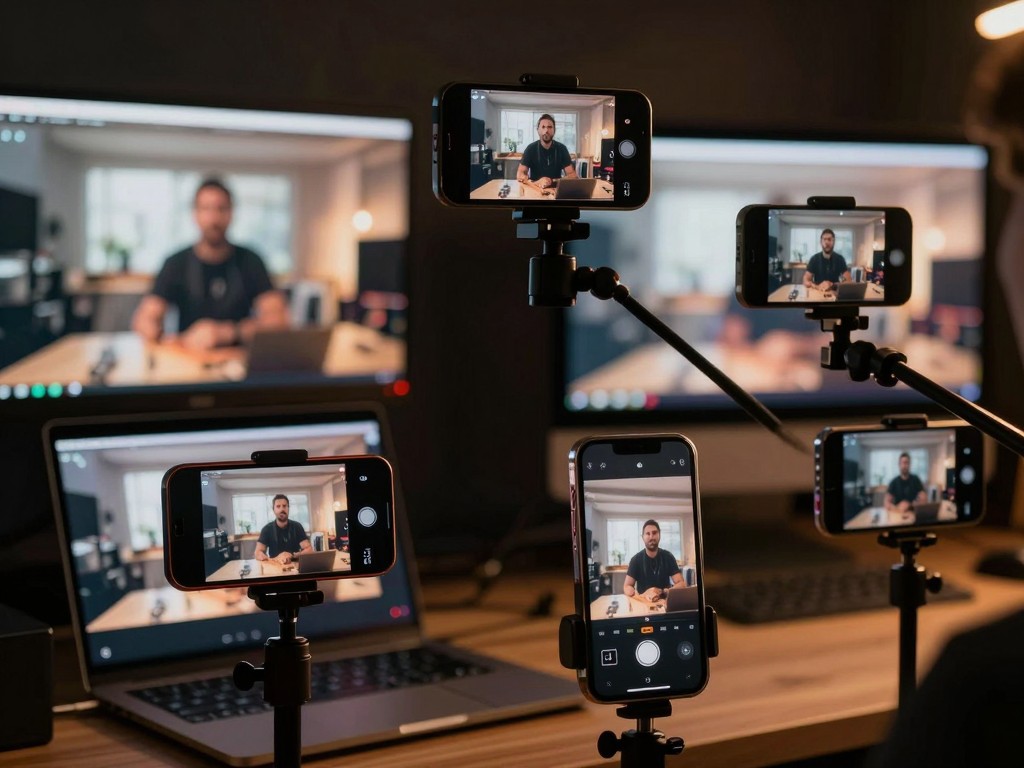
Connect multiple phones to one PC simultaneously. Each device registers as a separate webcam source — perfect for multi-angle streaming in OBS or vMix.
Professional Camera Controls
Manually adjust exposure, ISO, white balance, focus, and zoom with precision sliders. Lock AE/AF for consistent results across changing lighting conditions.
PC Video Recording
Record video and take snapshots directly from the PC client. Supports time-lapse shooting, configurable file naming, and keyboard shortcuts for hands-free control.
Multi-Lens Switching
Switch between front, rear, ultra-wide, wide-angle, and telephoto cameras in real time. On iOS, seamless lens transitions happen automatically when you zoom.
Key Features
Feature Deep Dive
A closer look at the capabilities that make iVCam the top-rated phone-as-webcam app
Feature 1
Stunning 4K Video That Outperforms USB Webcams
Modern smartphone cameras pack large sensors, advanced optics, and powerful ISPs that no budget webcam can match. iVCam harnesses all of that for your video calls and streams. Record at up to 4K (3840×2160) at 60 frames per second with HEVC (H.265) encoding to keep file sizes manageable. Configurable frame rate, video quality, and encoder settings let you fine-tune the balance between clarity and bandwidth. Whether you are presenting in a Zoom meeting or streaming on Twitch, iVCam delivers noticeably sharper detail, better dynamic range, and more accurate color than most standalone webcams priced under $200.
Easy to Use
High Performance
Feature 2
AI Background Removal — No Green Screen Needed
Starting from version 7.0, iVCam uses DirectML-accelerated AI to separate you from your background in real time. Five effects are available: Gaussian Blur for a soft privacy veil, Bokeh for a cinematic shallow-depth-of-field look, Mosaic for a pixelated background, Green Screen for chroma-key compositing in OBS or vMix, and custom Background File to replace your surroundings with any image or video. Blur, bokeh, and mosaic strength can be adjusted via the Camera Settings panel. Background removal runs on your GPU (NVIDIA Kepler or newer, AMD GCN 1st Gen or newer, Intel Haswell or newer) and works seamlessly in every app that sees the iVCam virtual camera.
Easy to Use
High Performance
Feature 3
Your Phone as a Wireless PC Microphone
iVCam does more than video — it also streams high-quality audio from your phone's microphone directly to your PC. Choose mono or stereo recording in the app settings, with quality tiers reaching 48 kHz / 128 kbps in high-quality mode. The PC client installs a virtual microphone driver (e2eSoft iVCam) that appears as a standard recording device in Windows, so any application — Zoom, Teams, Discord, OBS — can use it without extra configuration. Echo cancellation support on compatible devices keeps your voice clear. You can also record the phone mic audio when capturing video on the PC, or switch to the PC's own microphone if preferred.
Easy to Use
High Performance
Feature 4
Multi-Camera Streaming Made Simple
Professional content creators and event organizers need multiple camera angles — and iVCam delivers. Connect two, three, or more iPhones and Android phones to a single Windows PC at the same time. Each instance registers as an independent virtual webcam, giving you full multi-source control in OBS Studio, vMix, XSplit, or any broadcasting software. Assign different lenses to different angles: a wide-angle rear camera for the room, a telephoto for close-ups, and a front camera for a face cam. System-global hotkeys let you pause, snapshot, and record each instance independently, and you can even set per-instance file name prefixes for organized media management.
Easy to Use
High Performance
Works with Every App You Use
iVCam registers as a standard Windows virtual webcam. Any app that supports camera input works out of the box — zero per-app setup required.
Video Conferencing
Zoom
Microsoft Teams
Google Meet
Skype
Cisco Webex
Live Streaming
OBS Studio
XSplit
Streamlabs
vMix
Twitch Studio
Messaging & Social
Discord
Slack
WhatsApp Desktop
Facebook Messenger
Telegram
Recording & Editing
Windows Camera
Bandicam
Camtasia
VLC
Any webcam-enabled app
iVCam vs. a Traditional USB Webcam
See why your phone camera paired with iVCam outperforms most standalone webcams.
Common questions about iVCam's features and capabilities
Q
Does iVCam really support 4K video?
A
Yes. iVCam supports video resolutions up to 4K (3840×2160) at 60 fps, provided your phone camera can capture at that resolution. You can choose lower resolutions (2K, 1080p, 720p, 480p, 360p) in settings to reduce bandwidth usage. The app uses HEVC (H.265) encoding for efficient, high-quality transmission.
Q
What are the system requirements for background removal?
A
Background removal requires Windows 10 or later and a DirectX 12-capable GPU. Compatible hardware includes NVIDIA GTX 600 series or newer, AMD Radeon HD 7000 series or newer, and Intel 4th-gen (Haswell) HD integrated graphics or newer. If you have multiple GPUs, you can choose which one iVCam uses in Settings > Miscellaneous > Preferred GPU.
Q
Can I use iVCam as a microphone without video?
A
The iVCam PC client installs a virtual microphone driver (e2eSoft iVCam) that appears as a standard recording device in Windows. While iVCam is designed as a webcam app, you can minimize the PC client and use the microphone independently in any application. Audio quality reaches up to 48 kHz / 128 kbps in stereo.
Q
How many cameras can I connect simultaneously?
A
iVCam supports connecting multiple phones to a single PC at the same time by running multiple instances of the PC client. Each instance appears as a separate webcam source. The practical limit depends on your PC's processing power and network bandwidth. Professional users regularly run 2–3 instances for multi-angle streaming setups.
Q
Does iVCam work with OBS Studio?
A
Yes. After installing the iVCam Windows client, your phone appears as a 'Video Capture Device' in OBS Studio. You can use multiple iVCam instances for multi-camera setups and combine them with scenes, transitions, and overlays. iVCam also supports green screen mode for easy chroma-key compositing. See the full OBS guide.
Q
Is iVCam free to use?
A
Yes, iVCam is free to download and use with all core features. The free version includes a small watermark and occasional ads. Paid licenses remove the watermark and unlock advanced features like Camera Settings adjustment. Plans start at $7.99/year for Basic Annual, $12.99/year for Premium Annual, or $24.99 for a one-time Permanent license. View pricing details.
Q
What connection method should I choose — Wi-Fi or USB?
A
Both work well. Wi-Fi is more convenient and lets you place your phone anywhere in the room. USB provides lower latency and more stable transmission — ideal for professional streaming or recording. Both modes use automatic discovery, so no manual configuration is required. Wi-Fi guide · USB guide.
Q
Can I switch between phone cameras during a call?
A
Yes. Tap the camera switch button in the iVCam app to cycle through your phone's cameras: front, rear, ultra-wide, wide-angle, and telephoto (depending on your device). On iOS with Back Multiple Camera mode, the phone automatically transitions between lenses as you zoom. Camera switching happens in real time without interrupting the video feed.